End-to-end encrypted · Code stays on your machine
One console
for all your AI agents
Your agents keep running on your own computer. Agent Fleet brings every computer, agent and account into one interface, and your phone or browser takes over when you're away.
Available for macOS (Apple silicon), Windows and Android. HarmonyOS and iOS are coming to their app stores soon.
Take over from your phone or browser
Approve actions, answer questions and start tasks, for sessions on every computer.
Direct over the LAN
No server in between on the same network; the encrypted relay takes over when you leave.
Many agents, many computers
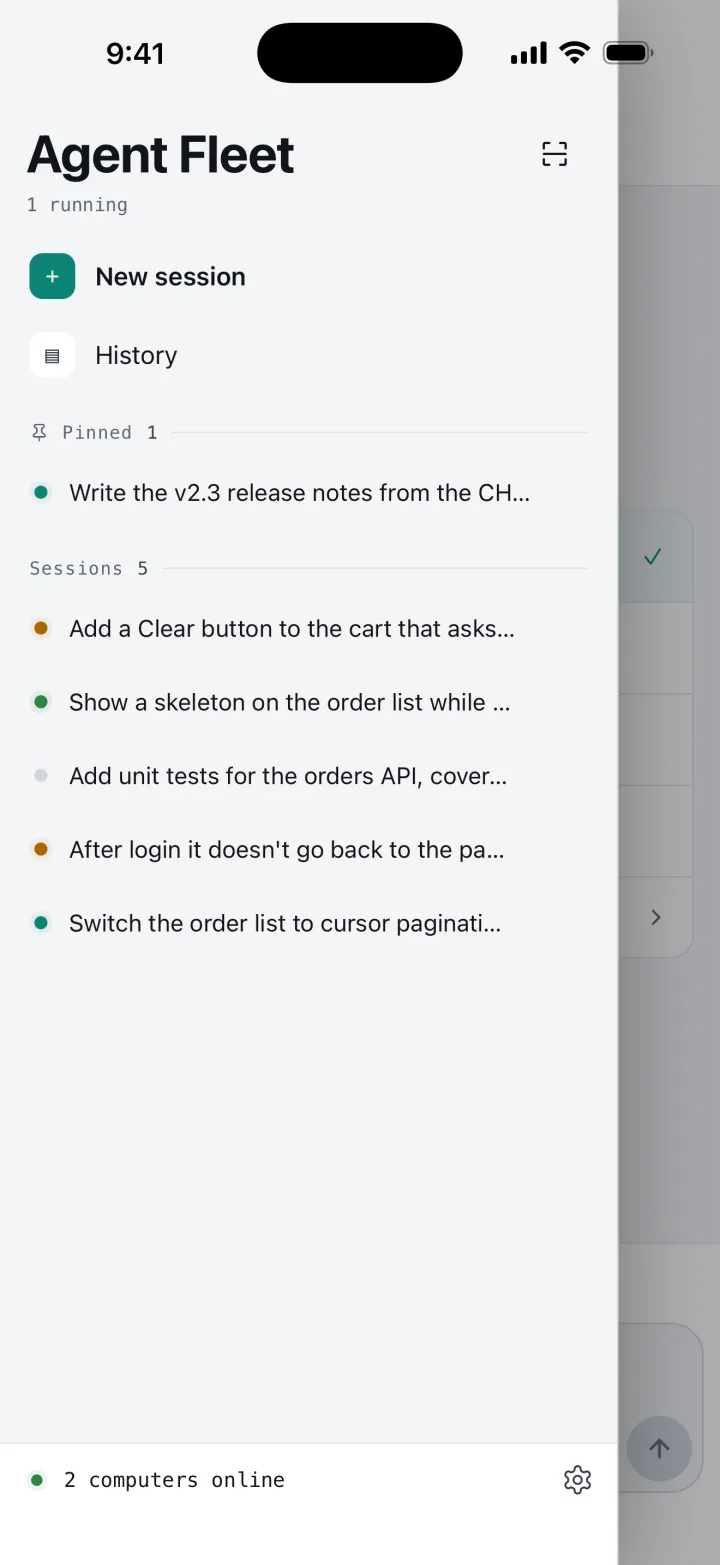
Agent sessions from every computer in one sidebar, grouped by status.
Accounts in one place
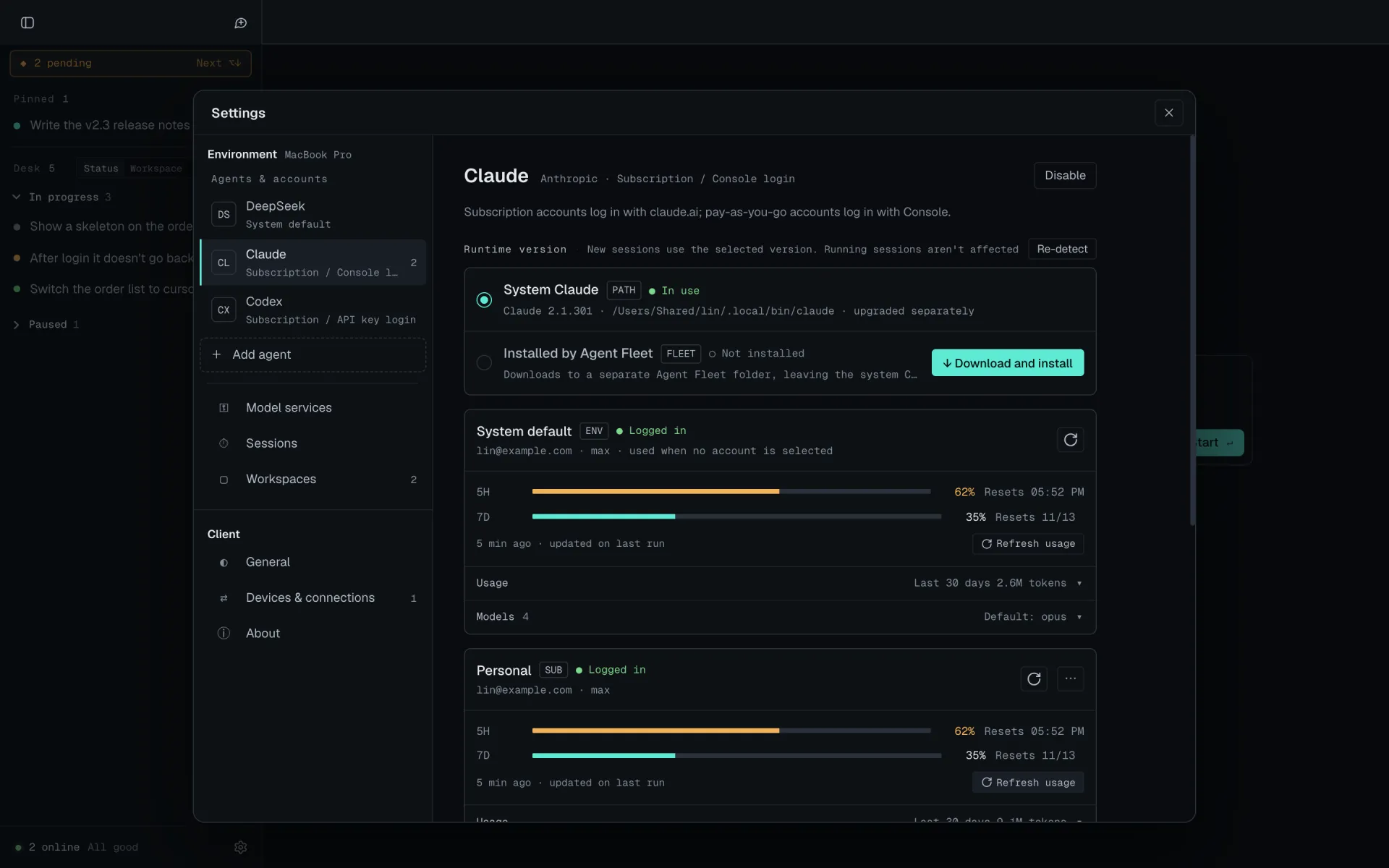
Subscriptions and API keys side by side, switchable mid-session.
Screens
A look inside
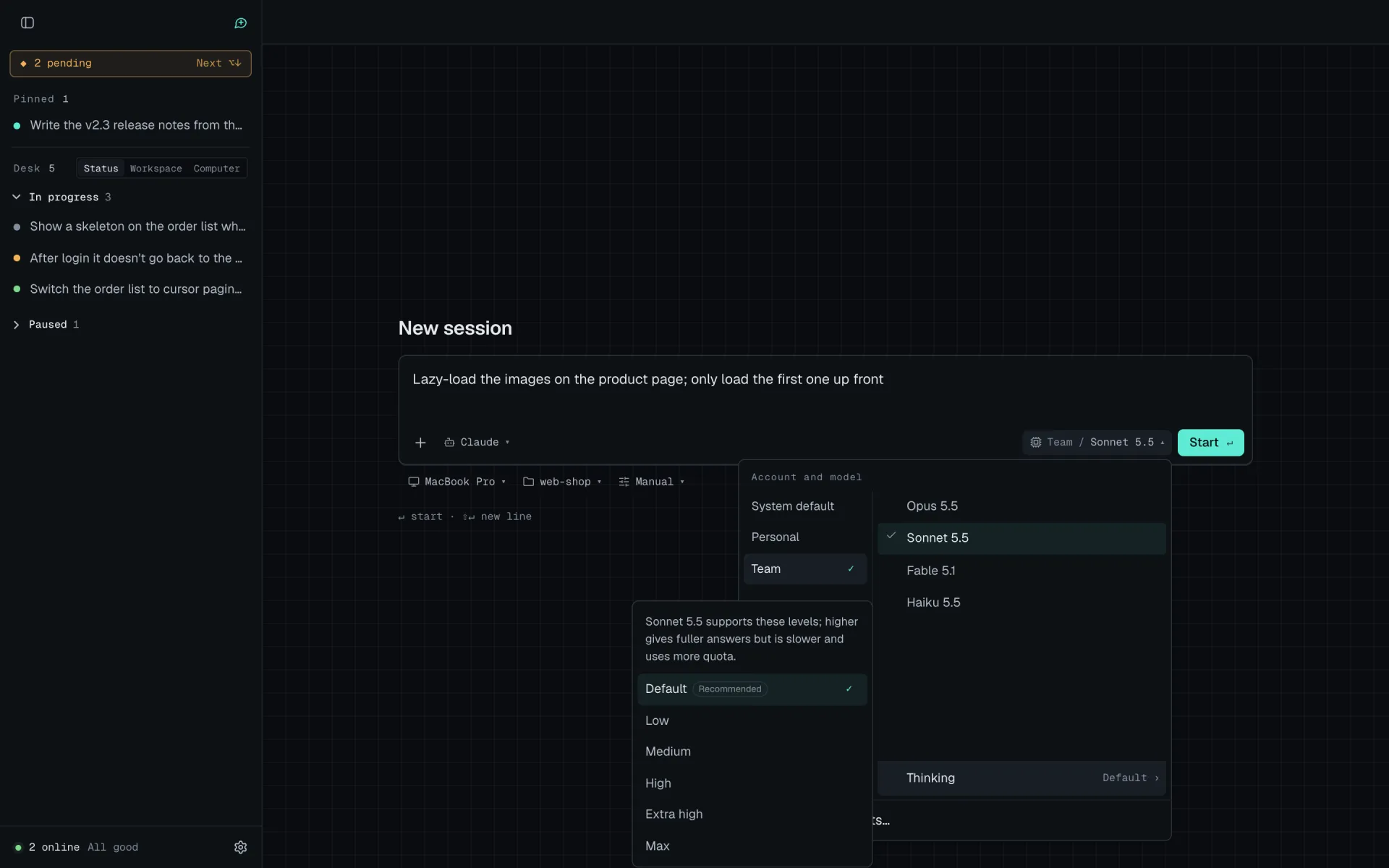
These are screenshots of Agent Fleet as it actually runs; the sessions and accounts are demo data.
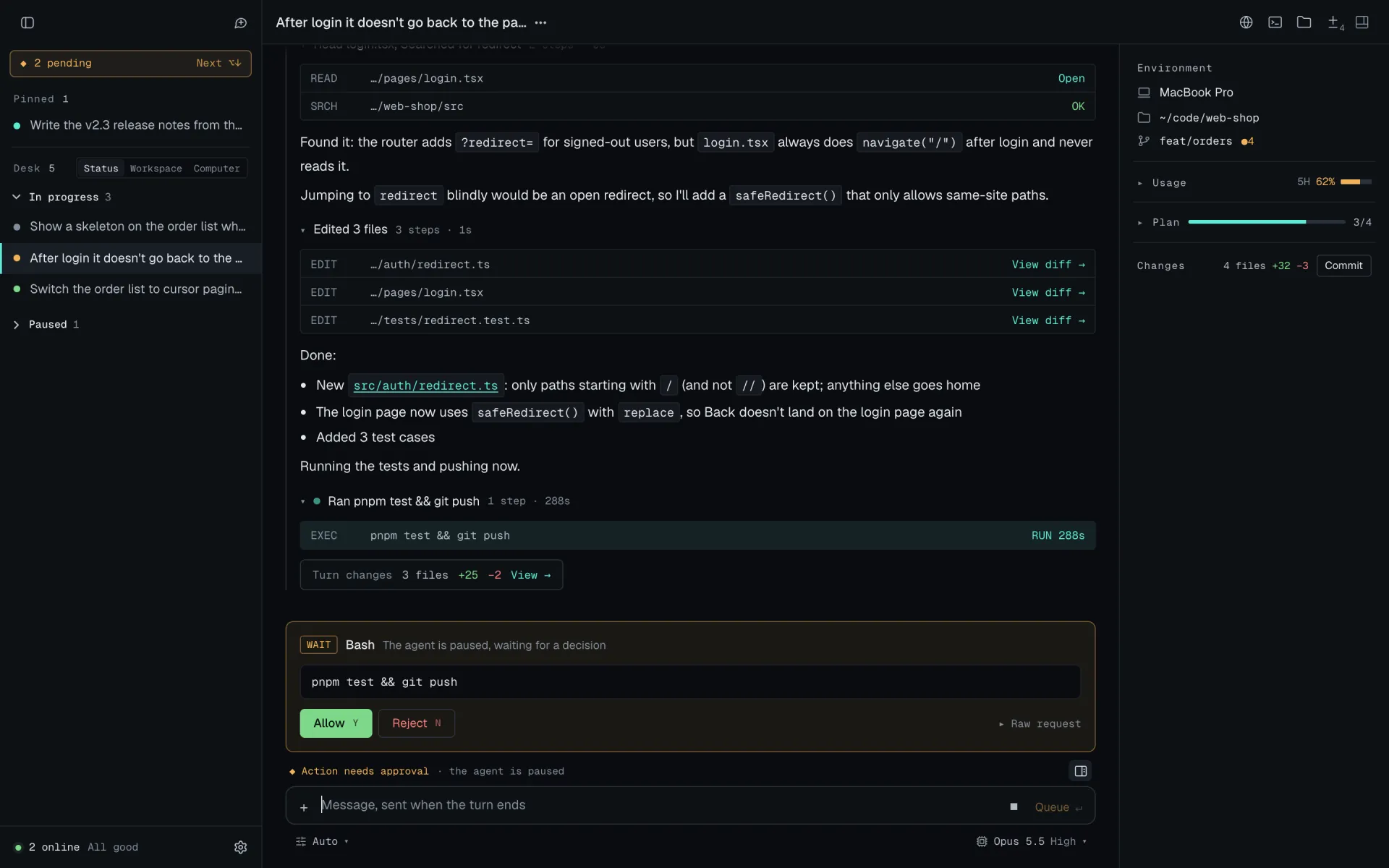
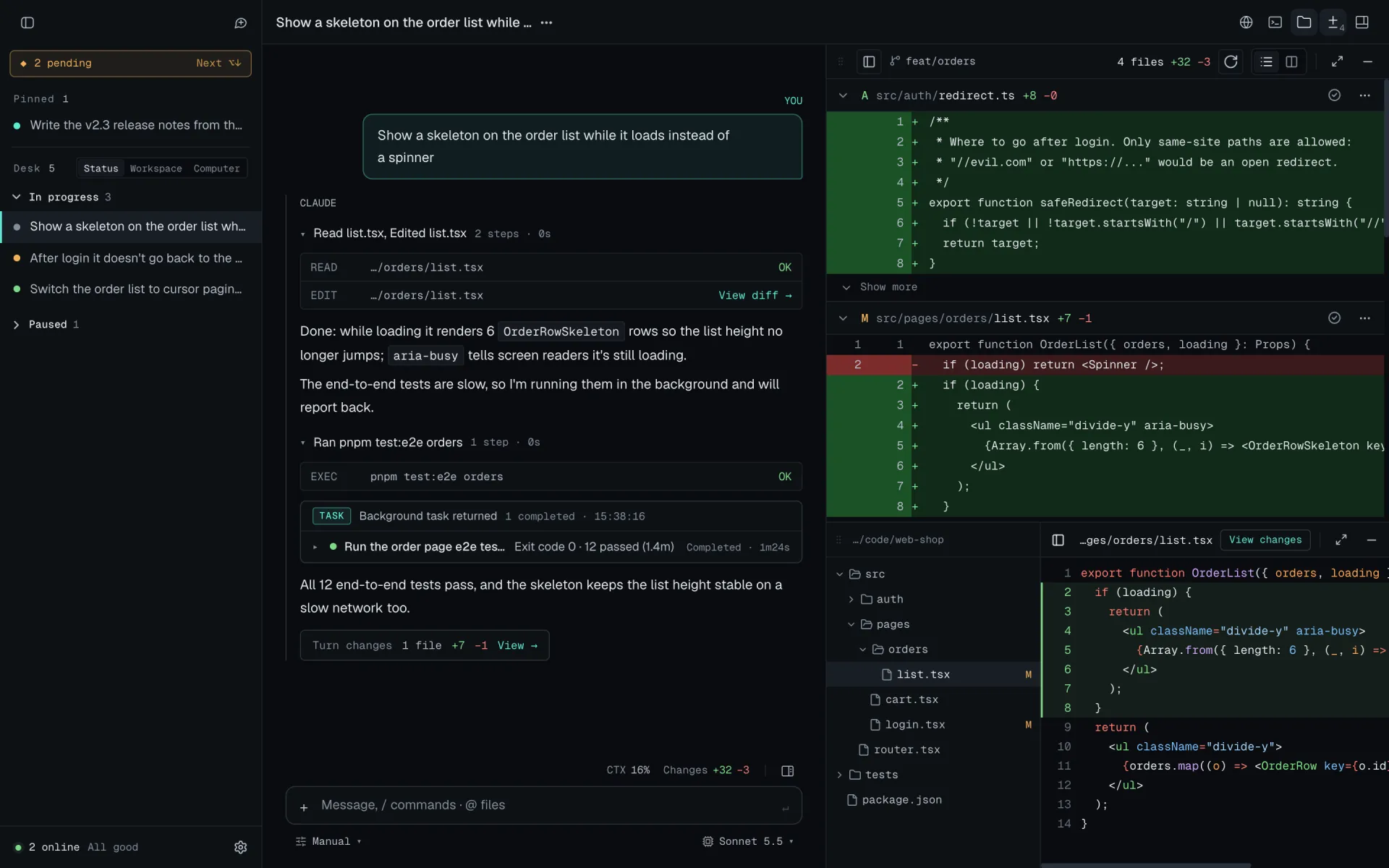
Session: every step in view
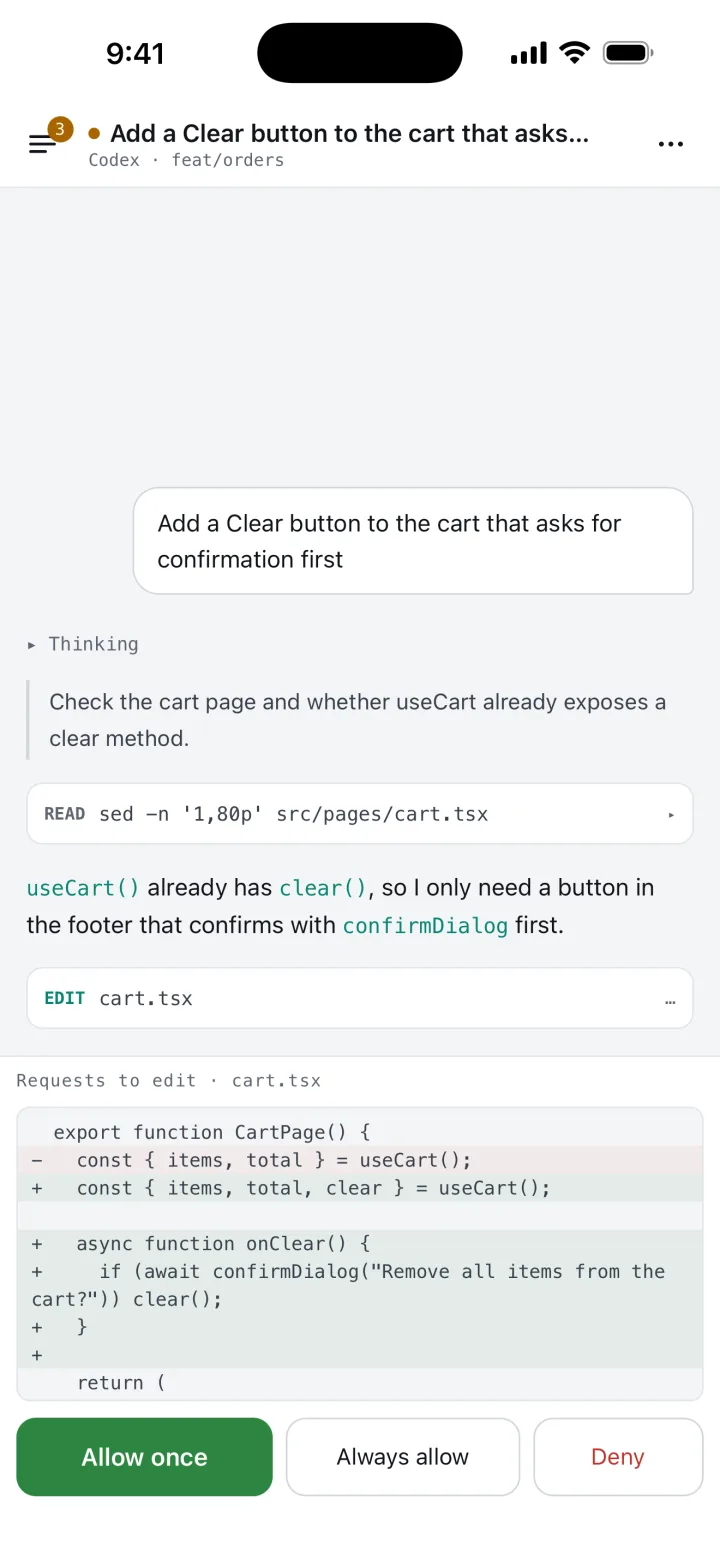
Which files were read, what changed and which command is about to run, each group of steps folded into one line. Approve commands right in the session, switch mode and model below the input, and see usage, plan and changes on the right.
Features
Your agents work on your computer. You keep watch from anywhere.
Sessions, history, diffs and images are all kept. After a restart, tap “Resume” to restore a session.
Session sidebar
Sessions from all your computers in one place: pin the ones you use most, and the rest are grouped into in progress and paused, or by workspace or computer. On the phone it opens as a side drawer.
Approvals
Before running a command or editing a file, the agent waits for your tap on the phone. Whether it asks depends on the agent’s mode, which you can switch anytime.
Many agents
Supports Claude, DeepSeek Harness and Codex. Download, upgrade and switch versions in the app, with no command-line setup.
Accounts and model providers
Sign in with a Claude subscription or Console account, or add API keys for DeepSeek, Zhipu, Moonshot, OpenAI and more. Switch accounts mid-session and check quota and spend anytime.
Start tasks remotely
Pick a workspace, agent, model and thinking level on your phone and type one sentence. In the web app you can also browse folders or clone a repository as a new workspace.
Multiple computers
Pair your work laptop and your desktop at home, and start a session in a workspace on any of them.
Tool panels
Changes, files, terminal and browser are panels you can split and drag anywhere. The desktop app can forward ports from a remote computer to this one.
Push notifications
Your HarmonyOS phone gets a push when something new needs you, plus home-screen widgets. The iOS and Android apps don't support push yet.
Desktop, mobile and web
The desktop app on your computer, the app on your phone, and the web app on a borrowed computer, signed in by scanning with your phone.
How it works
How it works and stays secure
Code stays on your machine
Agent processes, repositories, keys and environment variables all stay on your own computer. Your phone and the web app are just remote windows that exchange the events shown on screen.
The relay can't read anything
Your phone and your computer each connect to the relay, and only ciphertext passes between them. The relay only knows a room ID derived from your keys. It can't see session content, session IDs or which agent you use, and it writes nothing to disk.
Pair by scanning, keys live only on your devices
On first connection, scan a QR code or enter a pairing code to get a long-term device key; after that it reconnects automatically. Each device can be revoked individually on your computer.
LAN first
Paired devices on the same network connect to your computer directly, skipping a hop. The handshake and encryption are exactly the same as through the relay, and unpaired devices get nothing.
Download
Download
First install the desktop app on the computer that runs your agents, then install the mobile app and pair it. Computers that can't run the desktop app can use the web app.
Computers
macOS
Checking latest version…
Apple silicon (M1 or later). Checks for updates in the app, with stable and preview channels.
Loading…Windows
Checking latest version…
Windows 10 / 11 · x64. Checks for updates in the app, with stable and preview channels.
Loading…Web app
Chrome, Edge, Safari, etc. (desktop)
Connects to a computer that already has the desktop app; nothing to install. Sign in by scanning with a paired phone. Can be installed as a PWA.
Open web appPhones
Android
Checking latest version…
Open the downloaded file on your phone to install it; the system will ask you to allow installing unknown apps. Later updates happen inside the app.
Loading…HarmonyOS
Native app
Supports push notifications and home-screen service widgets.
Coming soon to Huawei AppGalleryiOS
iPhone
Same features as the Android app.
Coming soon to the App StoreQuick start
Get started in five steps
It takes about five minutes. You only need to be at the computer for the first pairing.
- 01
Install the desktop app
Download the installer for your system and open it. For remote use, keep the computer on and the desktop app running (it can be minimized to the tray / menu bar).
- 02
Add an agent and sign in
Open “Settings › Agents & accounts”, choose the agents you want and install them in the app. Then sign in with a subscription account, or enter an API key under “Model providers”.
- 03
Add a workspace and run a session on the computer
A workspace is the project folder your agent works in. To start a session, choose a workspace, agent, model and mode, then send the first message.
- 04
Install the mobile app and pair
Click “Pair new device” under “Settings › Devices & connections” in the desktop app, then scan the QR code with the mobile app or enter the pairing code. Pair once and it reconnects automatically.
- 05
Take over from your phone
Open a session on any computer from the side drawer to approve or reject actions, answer your agents' questions, send follow-up messages to running sessions, or start a new task.
On a borrowed computer, open the web app and authorize it by scanning the code with a paired phone. Choose “Just this once” and it's cleared when you close the tab.
Notes
Notes
Windows shows a SmartScreen warning
Modes that skip confirmation allow everything
Keep the computer on and the app running
Keep paired devices safe
The web app is for desktop browsers
Installing an agent the first time needs a download
FAQ
FAQ
Does Agent Fleet cost money? Does it use my tokens?+
Agent Fleet doesn't sell model usage. Your agents use the subscription accounts you sign in with or the API keys you enter, and the providers bill you directly. The app shows the quota and usage of each account.
Is my code uploaded to your servers?+
No. Agents read and write code on your computer; your phone only receives the messages shown on screen (such as replies and diffs), end-to-end encrypted. The relay server only forwards ciphertext by room ID, without decrypting or storing it.
Which agents are supported?+
Currently Claude, DeepSeek Harness and Codex. More agents are being adapted and will be enabled once they pass testing.
Can I connect to several computers at once?+
Yes. The mobile app and the desktop app stay connected to all paired computers at the same time, and sessions from every computer appear in one list. When starting a session you can pick a workspace on any of them.
Can I still connect after leaving the office Wi-Fi?+
Yes. On the same network it connects directly over the LAN; otherwise it switches to the relay automatically, with the same pairing and encryption.
What happens if my computer is turned off?+
The computer shows as offline and its sessions can't be used for now. Once it's back on and the desktop app is open, your phone reconnects automatically and earlier sessions can be resumed.
When will HarmonyOS and iPhone be available?+
Both versions already run on real devices and are being prepared for Huawei AppGallery and the App Store. Links will appear in the Download section on this page once they're live.